Console Setup
This page describes how to set up the BidMachine ad platform within your existing TopOn mediation.
Step 1. Obtain BidMachine Credentials
You need to obtain the following credentials from your BidMachine account:
| Parameter Name | Description |
|---|---|
| Source ID | Required for ad requests |
| Account ID | Required for Report API ad data |
| Account Password | Required for Report API ad data |
Step 2. Configure BidMachine in TopOn Dashboard
Add Ad Source
- Log in to the TopOn dashboard
- Navigate to Ad Platforms → Ad Source Management
- Locate BidMachine in the list
- Click Add Ad Source
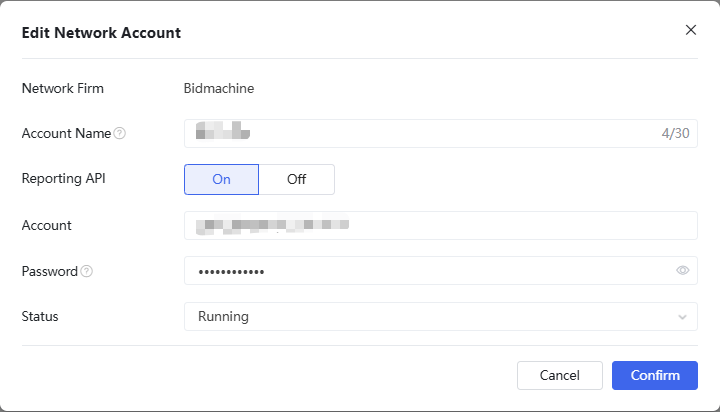
- Fill in the following parameters:
- Source ID: Enter the Source ID obtained in Step 1
- Account ID: Enter the Account ID for Report API access
- Account Password: Enter the Account password for Report API access
- Click Save
note
Create a placement in the BidMachine dashboard for each TopOn placement, under the source whose Source ID you entered above (see Placements). You will enter its Placement ID in TopOn in the next step.
Add Ad Source to Mediation
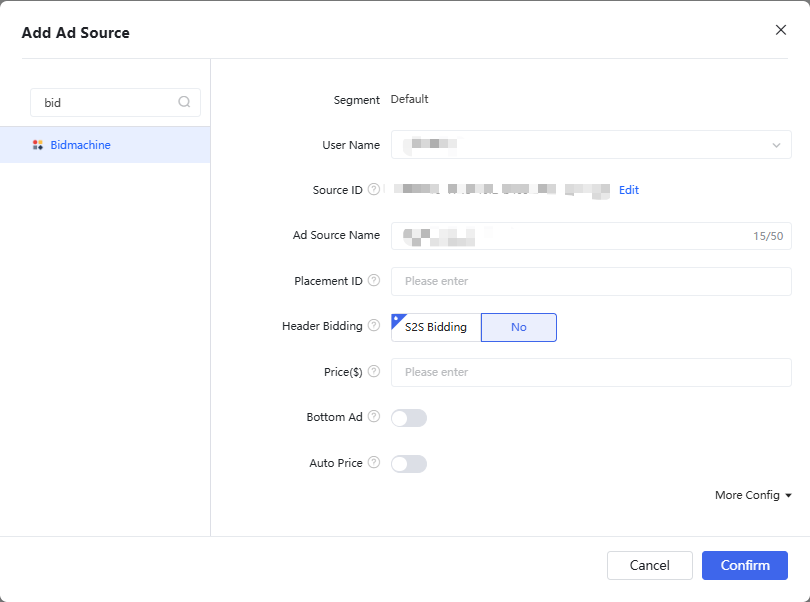
- Navigate to Mediation in TopOn dashboard
- Click Add Ad Source
- Select BidMachine from the available ad sources
- Configure the placement:
- Custom Placement ID: Enter the Placement ID of the matching placement in your BidMachine dashboard (not your Source ID)
- Save your configuration
Step 3. Add BidMachine Adapter to Your Application
After configuring BidMachine in the TopOn dashboard, you need to integrate the BidMachine adapter into your application code.
Refer to the TopOn SDK integration documentation for complete integration instructions.